

IPTV App: What It Does and How to Choose the Right One
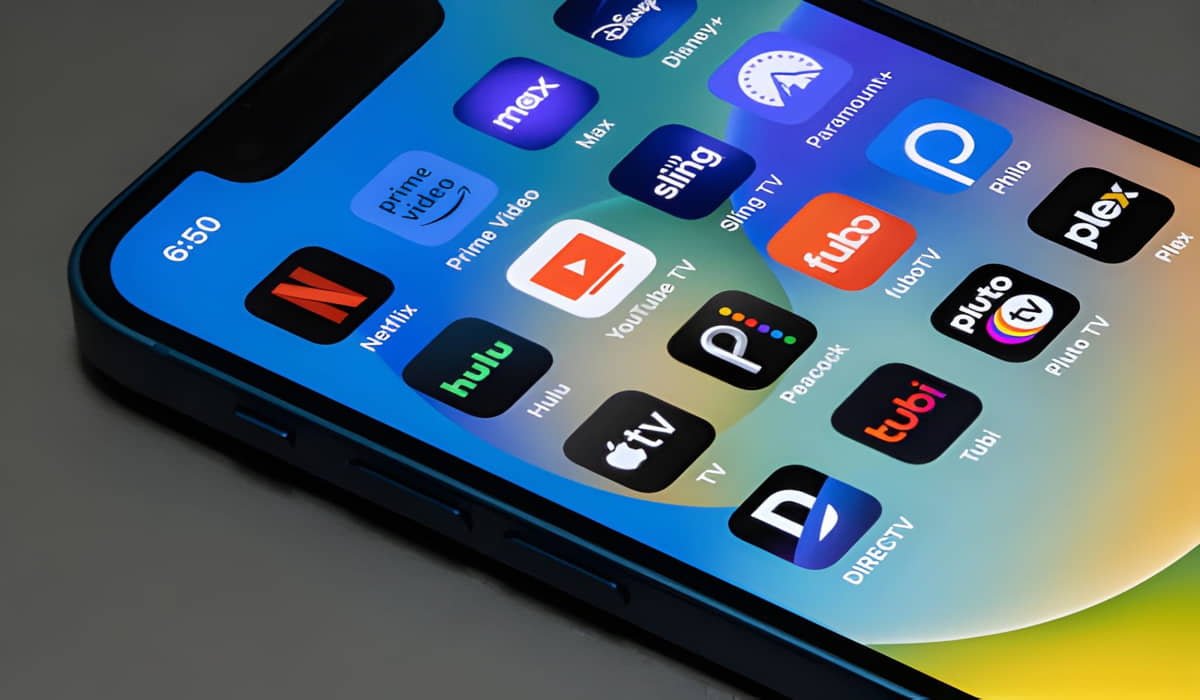
An IPTV app is software that lets you access, organise, and play compatible internet-delivered television streams and other supported media on a device such as a Smart TV, Fire TV Stick, smartphone, tablet, or computer. Some apps work as IPTV players and require a separate content source, while others connect users to content offered by a particular service.
Choosing the right IPTV app depends on four main things: your device, the login method supported by your IPTV service, the features you need, and your budget. You should also consider playback performance, ease of use, privacy, software updates, and whether the content source is authorised. Understanding these factors before installing an app can help you avoid compatibility problems and unnecessary spending.
What Is an IPTV App?
An IPTV app is a software application designed to access or play television content delivered over an internet connection. Depending on its purpose, it may display live TV channels, programme schedules, channel categories, movies, series, and playback controls.
You can install a compatible IPTV app on a supported streaming device, television, phone, tablet, or computer. After installation, you may need to connect it to a compatible content source before you can watch anything.
For example, imagine that you have an IPTV subscription and receive login details from your provider. You install an IPTV player on your television and enter those details using the method supported by the app. If the player and service are compatible, the app can load the available channels and other supported content.
The app provides the interface you use to browse and play that content. The actual channels and streams come from the connected source.
Not every IPTV app works in the same way. Some are designed specifically for one provider, while others let users connect their own playlists or account details. Some focus on live television, whereas others support additional features such as video on demand, electronic programme guides, or external media players.
The important point is that installing an IPTV app does not automatically give you access to a package of TV channels. You need to understand what the app includes and whether it requires a separate, compatible content source.
How Does an IPTV App Work?
An IPTV app brings together a compatible content source, a playback interface, and your streaming device. The exact process depends on the application and the service you use, but the general steps are similar.
Connect the app to a compatible content source
First, the app needs a way to identify the content you are allowed to access. Depending on the app and provider, this might involve a playlist, account credentials, a portal address, or another supported login method.
An M3U playlist is one example. It is a playlist format that can contain references to media streams or related information. An IPTV app that supports M3U playlists may use the supplied file or URL to organise available streams.
Some services offer an Xtream Codes API-compatible login method, which commonly uses account details and server information. Other applications work with a provider-specific portal or account system.
These methods are not interchangeable in every app. Before entering your details, check which method your provider supplies and which methods the app supports.
Load channels, programme information, and on-demand content
Once the connection is configured correctly, the app may load a channel list, categories, programme schedules, or video-on-demand content.
The available information depends on the content source and the app’s capabilities. For example, a channel list might load successfully even if electronic programme guide data is missing. Similarly, an app may support movies and series but display none if the connected source does not provide them.
The app cannot display content or programme information that it does not receive or support.
Play the selected stream
When you select a channel or video, the app requests the relevant stream and uses a compatible playback system to present it on your device.
Your internet connection carries the stream, while the app manages functions such as playback controls, channel navigation, and supported audio or subtitle options.
The app may also allow you to switch channels, search for content, mark favourites, or view programme information. These features depend on the application and the data supplied by the content source.
A simplified explanation looks like this:
Compatible content source → IPTV app → Internet connection → Streaming device → Screen and audio
What affects IPTV app playback quality?
A good IPTV app can make content easier to browse and play, but it cannot guarantee smooth streaming in every situation.
Playback quality may depend on:
- Internet stability: An inconsistent connection can interrupt the delivery of a stream.
- Available bandwidth: Your connection needs enough capacity for the selected stream and other internet activity in your home.
- Device performance: Limited memory, processing power, or storage can affect how an app runs.
- App compatibility: An outdated or incompatible application may have playback problems.
- Stream quality: The quality and reliability of the supplied stream also matter.
- Content source: Server-side problems or an unavailable stream can prevent playback even when the app works correctly.
If buffering occurs, identify where the problem originates before replacing the app. Changing players will not necessarily resolve an issue caused by the network or content source.
What Is the Difference Between an IPTV App and an IPTV Service?
An IPTV app and an IPTV service are related, but they perform different roles. The app provides the software interface, while the service or another authorised source provides access to the available content.
| Aspect | IPTV app | IPTV service |
|---|---|---|
| Main purpose | Provides the interface or player used to access content | Supplies or authorises access to available channels and streams |
| Content | May not include channels or a content package | Provides content according to its offering and rights |
| Login | May accept credentials, a playlist, or another supported method | May supply the access details needed by a compatible app |
| Cost | May be free, paid, or offer in-app purchases | May require a separate subscription |
| Compatibility | Must support your device and access method | Must work with a compatible app and device |
| Features | Controls browsing, navigation, and playback according to its capabilities | Determines the content and related features available through the service |
| Content rights | Its software functionality does not establish the rights to every stream | The supplied content must have appropriate distribution and access rights |
Consider someone who downloads an IPTV player from an app store. The installation gives that person access to the player’s features, but it does not necessarily include a television subscription. They may still need a compatible content source.
Now consider someone who purchases an IPTV subscription. The subscription may provide login details, but those details will not automatically work in every IPTV player. The chosen app must support the service’s access method.
Some applications combine a player with content supplied by their own service. Others are designed to work with an external source. Check the product’s actual functionality rather than assuming every app follows the same model.
What Features Should You Look for in an IPTV App?
The most suitable IPTV app is not necessarily the one with the longest feature list. It is the one that works with your device and content source while providing the functions you will actually use.
Device and operating-system compatibility
Start by checking whether the app supports your exact device and operating-system version.
An app available for Android phones may not be available for Android TV in the same form. Likewise, a Smart TV app designed for one television operating system may not work on another manufacturer’s model.
Check the app’s official listing or developer documentation before installing it. Look for supported device types, operating-system requirements, regional availability, and any known restrictions.
Playlist and login compatibility
The app must support the method your IPTV service uses to provide access.
If your provider supplies an M3U playlist, confirm that the app accepts that format. If the provider uses an Xtream Codes API-compatible login or a portal, check that the application supports the required method.
Do not assume that all IPTV players accept every playlist format or authentication system. Confirm compatibility before paying for a premium version.
Live TV and channel navigation
If you mainly watch live television, prioritise an interface that makes channels easy to find and switch between.
Useful features may include:
- Channel categories and organised lists.
- A search function.
- A favourites list.
- Clear channel names and programme information.
- Responsive navigation using a TV remote.
- Easy access to recently watched channels, where supported.
A well-organised interface can make everyday viewing more convenient, especially when a content source contains a large number of channels.
Electronic programme guide (EPG)
An electronic programme guide, or EPG, displays information about television programmes and their schedules. Depending on the app, you may be able to see what is currently playing and what is scheduled next.
EPG support can be valuable if you prefer to browse programmes instead of opening channels one by one. However, an app’s ability to display a guide does not mean that accurate guide data is automatically included.
The content source must provide compatible programme information, and the app must be configured to load it. Missing or incorrect schedules may result from unavailable guide data, incorrect configuration, or a compatibility issue.
Video-on-demand support
Some IPTV apps can organise and play movies and series supplied by a compatible content source. This functionality is often called video on demand, or VOD.
If you use this type of content, check whether the app supports browsing categories, searching titles, displaying descriptions, and resuming playback where available.
Remember that VOD support in an app does not mean the app includes a movie or series catalogue. The content source must make the relevant media available, and the app must support the supplied format.
Playback controls and format support
Different applications offer different playback options. Depending on your needs, you may want support for subtitles, alternative audio tracks, aspect-ratio adjustments, or an external player.
These options can improve usability, but they are not universal. A subtitle option, for example, is useful only when the app can handle the subtitle format and the required subtitle data is available.
If a particular playback feature matters to you, verify it in the app’s current documentation rather than relying on a general feature list.
Catch-up, recording, and advanced features
Some applications offer advanced functions such as catch-up TV, recording, or time-shifting. These features allow supported content to be watched or recorded in ways that go beyond basic live playback.
Their availability may depend on several conditions, including:
- Whether the app implements the feature.
- Whether the content source supports it.
- Whether the device has suitable storage or other required capabilities.
- Whether the relevant content and usage rights permit the activity.
Do not choose an app based on recording or catch-up features until you have confirmed that the complete setup supports them.
Interface and ease of use
The best interface depends on how you watch.
On a television, large labels, clear categories, and straightforward remote-control navigation may matter most. On a phone or tablet, responsive touch controls, readable text, and portrait or landscape support may be more important.
Consider how quickly you can find channels, open settings, search for content, and return to playback. An app with many advanced functions may still be a poor fit if everyday navigation is confusing.
Price, advertisements, and paid features
IPTV apps may be free, require a one-time payment, use a subscription model, or offer in-app purchases. Some free versions include advertisements or limit certain features.
Before paying, check what the price covers. You may be paying for the player software, premium features, removal of advertisements, or another app-specific benefit.
These costs are separate from the price of any IPTV service or content subscription you may need. Paying for an app does not automatically provide access to channels, movies, or series.
Updates, privacy, and developer support
Check whether the developer is identifiable, whether the app receives updates, and whether useful documentation is available.
Review the privacy policy and the app’s disclosed data practices where available. Pay attention to the permissions requested and consider whether they make sense for the app’s purpose.
For example, an application that asks for account credentials should provide a clear reason for the login process and a trustworthy way to understand how those details are handled.
Regular maintenance and accessible support can also help when an operating-system update or compatibility change causes problems.
How to Choose the Right IPTV App for Your Needs
Use this step-by-step process to narrow down your options without being distracted by features you may never use.
1. Identify the device you want to use
Begin with the device on which you plan to watch television. It could be a Fire TV Stick, Android TV device, Google TV device, Smart TV, smartphone, tablet, Windows PC, or Mac.
Check the exact model and operating-system version. If you plan to use more than one device, confirm support for each one separately.
Do not choose an app solely because it is popular on another platform.
2. Confirm your IPTV service’s supported login method
Before downloading or purchasing an IPTV player, check the access details provided by your service.
Does it supply an M3U playlist, a supported account-based login, a portal, or another method? Does the app explicitly support that method?
This step can save time because a well-designed application is not useful if it cannot connect to your content source.
If the instructions are unclear, ask the service provider which apps or access methods are supported.
3. Decide which features you actually need
Separate essential features from optional extras.
For example, someone who mainly watches live television may prioritise channel navigation, favourites, and EPG support. Someone who regularly watches movies and series may care more about VOD browsing, subtitles, and playback controls.
A person using a television remote may prioritise a simple TV-friendly interface, while a mobile user may want responsive touch controls.
Write down your essential requirements before comparing applications. This makes it easier to ignore features that sound impressive but do not solve a real problem for you.
4. Check the price and limitations
Read the pricing details before paying. Determine whether the app is free, requires a licence, charges a recurring subscription, or offers optional purchases.
Check whether the free version limits the number of playlists, removes certain features, displays advertisements, or restricts other functions. Only rely on limitations confirmed in the app’s current product information.
Also account for any separate content subscription you need. Evaluate the total cost of the setup rather than looking at the app price alone.
5. Evaluate reliability and ease of use
Look at current app-store information, recent user feedback, update history, and available support documentation.
Recent reviews can help identify recurring usability issues, but individual ratings are not proof that an app will perform the same way on every device or network.
Pay attention to practical details: Can you find the settings easily? Is the interface readable on your screen? Does the developer explain how to configure supported access methods? Are known problems addressed in updates or support resources?
6. Verify privacy and trustworthy installation
Download apps through official app stores or a developer’s verified distribution channel whenever possible.
Be cautious about modified APK files, unfamiliar download sites, and applications that ask you to enter login credentials into suspicious forms. An installation file from an unknown source may introduce security or privacy risks.
Check the developer’s identity, privacy policy, permissions, and update practices. On platforms that provide app privacy disclosures, review the information before installing.
7. Test compatibility before committing
Where possible, test the basic setup before purchasing optional premium features or committing to a long-term arrangement.
Confirm that you can:
- Install and open the app on your device.
- Connect using the required access method.
- Load the available channels or content.
- Display programme guide data if it is supplied.
- Play supported content without persistent errors.
- Navigate the interface comfortably.
Testing these basics helps you distinguish a genuine compatibility problem from a preference about the interface or feature set.
Quick selection checklist
- Does the app support my exact device and operating system?
- Does it accept my content source’s login method?
- Does it offer the live TV, EPG, or VOD features I need?
- Are the price and limitations clear?
- Is the developer identifiable, and is the app maintained?
- Can I find trustworthy installation and support instructions?
- Have I checked privacy practices and the legitimacy of my content source?
Which IPTV App Is Suitable for Each Device?
Device compatibility should guide your choice. An application that works well on a phone may not be available for a television, and an app listed for one Smart TV operating system may not support another.
IPTV apps for Amazon Fire TV Stick
When choosing an IPTV app for a Fire TV Stick, check its availability in the Amazon Appstore and confirm that it supports your particular device.
Remote-control navigation is especially important. Look for a layout that makes channel selection, searching, favourites, and playback controls easy to use from the sofa.
Also consider device storage, the app’s operating-system requirements, and whether the application supports your content source’s access method.
Avoid assuming that every Android application is available or works correctly on every Fire TV model. Verify compatibility and use a trustworthy installation method.
IPTV apps for Android TV and Google TV
For Android TV and Google TV devices, prioritise applications designed for television screens and remote controls.
Check whether the app is available for your device, whether its interface works well on a large screen, and whether it supports the login method supplied by your IPTV service.
A mobile-oriented interface may be less convenient when operated with a remote, even if the app can technically run on the device.
IPTV apps for Smart TVs
Smart TVs use different operating systems, and their app catalogues vary by manufacturer, model, and region.
Before choosing an app, search the television’s official app store or consult the manufacturer’s documentation. Confirm that the application supports the exact model or operating system.
If the app is unavailable, do not immediately assume that your television cannot be used for IPTV. A compatible external streaming device may provide another option, provided the app and content source support that setup.
IPTV apps for Android phones and tablets
For Android phones and tablets, consider touch navigation, screen orientation, readability, and compatibility with your Android version.
If you watch while travelling, think about mobile data use as well as Wi-Fi performance. Streaming video can consume substantial data, depending on its resolution, bitrate, and duration.
Check the app’s permissions, update history, and supported playback features before installing it.
IPTV apps for iPhone and iPad
For Apple devices, verify current availability through Apple’s supported app distribution channels and check the requirements for your iOS or iPadOS version.
Look for a mobile-friendly interface, supported access methods, and any playback features you need. Review the app’s privacy information and developer details before entering account credentials.
Do not assume that an app available on Android has an equivalent version for iPhone or iPad. Platform availability and functionality can differ.
IPTV apps for Windows and macOS
On a desktop or laptop, you can consider a dedicated IPTV application or a compatible media player that supports the content source you intend to use.
Check operating-system support, installation requirements, and whether the software accepts the required playlist or login method.
Keyboard and mouse controls may be more convenient than a television remote, while window resizing, subtitle controls, and playback settings may matter more for desktop use.
Before downloading desktop software, verify that the download comes from the developer’s official or otherwise trusted distribution channel.
Are Free IPTV Apps Good Enough?
Yes. A free IPTV app may be sufficient if it supports your device, works with your content source, and includes the features you need.
Some free applications provide the essential functions required to load compatible content and play streams. Others may include advertisements, limit certain features, or offer paid upgrades.
A paid application may provide a different interface, advanced playback controls, or additional convenience features, but price alone does not establish quality. Compare the actual functionality, compatibility, maintenance, and support.
Keep app pricing separate from content access. A free IPTV player does not necessarily provide free television channels, and purchasing a player does not automatically include an IPTV subscription.
Safety also depends on more than price. A free app from a trustworthy developer may be suitable, while a paid app from an unclear source may still present concerns. Review the developer’s identity, permissions, privacy practices, and distribution method before deciding.
IPTV App vs Media Player vs Streaming App
These terms overlap, so the name alone does not tell you exactly what an application can do.
| Type | Main purpose | What to check |
|---|---|---|
| IPTV app | Provides an interface for accessing or playing compatible IPTV sources | Supported devices, login methods, channel navigation, and playback features |
| Media player | Plays supported media formats; some players can also handle IPTV sources | Playlist support, stream compatibility, and available playback controls |
| Streaming app | Broad term for software that streams content, often from a particular platform or source | Whether it provides its own content or supports external sources |
| IPTV service app | An application supplied or designated by a particular IPTV provider, where available | Account requirements, supported devices, service features, and access restrictions |
A media player is not automatically an IPTV player. It may play local video files but lack the ability to load an IPTV playlist or connect to a provider’s login system.
Similarly, a streaming app may be designed only for its own content platform and may not accept an external playlist.
Some applications fit more than one category. Focus on verified capabilities, not marketing labels.
How to Set Up an IPTV App
The exact setup process depends on the app, device, and content source. The following steps provide a general overview; use the relevant device-specific instructions for detailed guidance.
Step 1: Install a compatible app
Find an application that supports your device and required access method. Use the official app store or a verified distribution channel, and check the system requirements before installing it.
Step 2: Obtain the correct access details
If the app requires an external source, obtain the relevant details from an authorised provider. These might include a playlist, account credentials, a portal address, or another supported configuration method.
Use only the access method that both the app and source support.
Step 3: Enter the details correctly
Follow the application’s instructions. Check for typing mistakes, unnecessary spaces, incorrect URLs, or other formatting errors.
Treat login details as private information. Avoid posting them publicly or sharing them with untrusted people.
Step 4: Load the content and programme guide
Allow the app to process the supplied information. Depending on the playlist size, device, connection, and source, loading may take some time.
If the channel list appears but programme information does not, check whether compatible EPG data is available and whether the app is configured to load it.
Step 5: Test playback
Open a few available channels or items, test navigation, and check the playback controls you expect to use.
If something does not work, identify whether the issue relates to the app, device, network, login details, or content source before changing your entire IPTV setup.
For detailed instructions, use a guide written for your particular device and app. A Fire TV Stick setup, for example, may differ from the process for an iPhone or a Smart TV.
Common IPTV App Problems and How to Fix Them
When an IPTV app stops working, do not immediately assume the application is faulty. The problem may come from incorrect login details, an unsupported format, the device, the internet connection, or the content source.
| Problem | Initial checks |
|---|---|
| Login fails | Check the credentials, formatting, account status, and whether the app supports the required login method. |
| Channels do not load | Confirm that the source is available, the supplied details are correct, and the app supports the content format. |
| Buffering occurs | Check connection stability, available bandwidth, device performance, and whether the problem affects one stream or all streams. |
| EPG is missing | Confirm that compatible programme data is supplied and that the app is configured to load it. |
| App crashes | Check operating-system compatibility, available storage, updates, and device requirements. |
| App cannot be installed | Verify the device model, operating system, regional availability, and supported installation methods. |
| Some content will not play | Check format support, stream availability, source restrictions, and available playback options. |
A practical troubleshooting approach
Start with the simplest checks. Confirm that your internet connection works, reopen the app, and verify that the login information is correct.
Next, determine whether the issue affects one channel or every channel. If only one stream fails, the problem may be specific to that stream or its availability. If all content fails, check the source connection, login method, network, and application configuration.
If the problem persists, review the app’s official support documentation and the provider’s setup instructions. Updating or reinstalling an app may help with certain software problems, but it will not necessarily fix an unavailable content source or an unstable internet connection.
Avoid sharing passwords, playlist URLs, or other private access details when asking for help in public forums.
Are IPTV Apps Legal and Safe to Use?
The legality of an IPTV app and the legality of the content accessed through it are separate questions.
An application can provide playback functionality without supplying the rights to every channel or video that a user loads into it. The relevant issue is whether the content source is authorised to distribute the material and whether the access arrangement complies with applicable law.
In Canada, copyright law protects certain rights associated with creative works, broadcasts, and other protected material. The Canadian Intellectual Property Office explains that copyright infringement can involve using protected content in ways that violate the rights granted to the copyright owner. Whether a particular situation infringes copyright depends on its facts and the applicable law.
For that reason, do not assume that all IPTV apps are illegal, or that every source accessed through a legitimate app is authorised. Check the provider’s identity, the nature of its offering, and the basis on which it supplies the content. If you are uncertain about a specific legal situation, seek advice from a qualified legal professional.
Safety requires a separate assessment. Before installing an app, consider the following:
- Download source: Prefer official app stores or a developer’s verified distribution channel.
- Developer transparency: Check whether the developer is identifiable and provides useful support information.
- Permissions: Be cautious when requested permissions appear unrelated to the application’s purpose.
- Privacy policy: Review what information may be collected and how it is used.
- Account security: Enter credentials only through a trustworthy application and avoid sharing them publicly.
- Software maintenance: Look for updates and signs that the application is still supported.
Modified applications and downloads from unknown websites can introduce additional risks. An app’s presence in an app store is not a guarantee that every feature is suitable for every user, but using trustworthy distribution channels and reviewing available privacy information are sensible starting points.
Most importantly, remember that a legitimate IPTV app does not automatically make every content source legitimate. Evaluate the software and the content provider separately.
Frequently Asked Questions About IPTV Apps
What is an IPTV app used for?
An IPTV app is used to access, organise, and play compatible internet-delivered television streams or other supported media. Depending on the application, it may display live channels, programme schedules, movies, series, and playback controls. Some apps require an external content source, while others connect users to content supplied by a particular service.
Does an IPTV app provide TV channels?
Not necessarily. Many IPTV apps are players that require a separate compatible playlist, account, or service. Other applications may include access to content supplied by their own provider. Check the app’s description and requirements before installing it, and do not assume that downloading a player gives you access to a channel package.
Do I need an IPTV subscription to use an IPTV app?
It depends on the application and content source. A player may open without a subscription, but paid television content generally requires an appropriate access arrangement. Some apps work with other compatible sources or local media instead. Check what the app provides and whether the content you want requires a separate subscription.
Can I use the same IPTV app on different devices?
Sometimes, but cross-device support is not guaranteed. An app may be available on several operating systems, while another may support only a specific platform. App licensing, device compatibility, and provider requirements can also affect use. Check support for each device you plan to use rather than assuming one installation works everywhere.
What is the difference between an IPTV app and an IPTV player?
The terms often overlap. An IPTV app may provide the software interface for accessing compatible IPTV content, and an IPTV player commonly refers to software that loads and plays those streams. Product labels vary, so check whether the application supports your device, content source, and required login method.
Can I use an IPTV app on a Smart TV?
Yes, if a compatible application is available for your television’s operating system and model. Smart TVs do not all use the same software or app catalogue. Check the TV’s official app store or manufacturer documentation. If a suitable app is unavailable, a compatible external streaming device may be another option.
Are free IPTV apps safe?
Some free apps may be suitable, but safety depends on the developer, download source, permissions, privacy practices, and maintenance. Do not judge an app solely by whether it charges money. Verify the developer, review available privacy information, and avoid suspicious downloads or login forms.
Why is my IPTV app buffering?
Buffering can result from an unstable internet connection, limited available bandwidth, device performance, app compatibility, stream quality, or problems with the content source. Check whether the issue affects one stream or all streams and test your connection before switching apps. Changing the player may not resolve a source-side or network problem.
What is an M3U playlist?
An M3U playlist is a format that can identify media streams or related information. Some IPTV apps can use an M3U file or URL to organise compatible streams. Support varies by application, so confirm that your chosen app accepts the playlist format supplied by your authorised content source.
What is an EPG in an IPTV app?
EPG stands for electronic programme guide. It displays television programme information and schedules, where compatible guide data is available. The app must support EPG functionality, and the content source must provide suitable information. A missing guide does not always mean that the channel stream itself is unavailable. Learn more about the use and operation of EPG for IPTV.
Can an IPTV app record live TV?
Some apps support recording, but this is not a standard feature across all applications. Recording may depend on the app, device, available storage, content source, and applicable rights. Check each requirement before relying on an app for recording or time-shifting.
Which IPTV app is best?
There is no single IPTV app that is best for every user. The right choice depends on device compatibility, supported access methods, interface design, playback features, pricing, privacy, and developer support. Start with your device and content source, then compare applications against the features you actually need.
Choose an IPTV App That Fits Your Device and Service
Choosing the right IPTV app becomes easier when you follow a clear process. First, identify your device and operating system. Next, confirm that the app supports your content source’s login method. Then compare the features you need, check the price and limitations, review privacy and developer support, and test basic compatibility before committing to optional paid features.
Remember that the app and the IPTV service have different roles. A player can organise and play compatible streams, but it doesn’t necessarily supply channels or grant subscription access. Your content source, device, network, and app must work together for the setup to function properly.
If you already have an IPTV service in Canada, start by checking which apps it supports and its setup requirements. If you are still evaluating your options, learn how the service provides content and verify that it supports your intended device before choosing an IPTV subscription plan.