

How Much Internet Speed Is Required for IPTV in Canada?
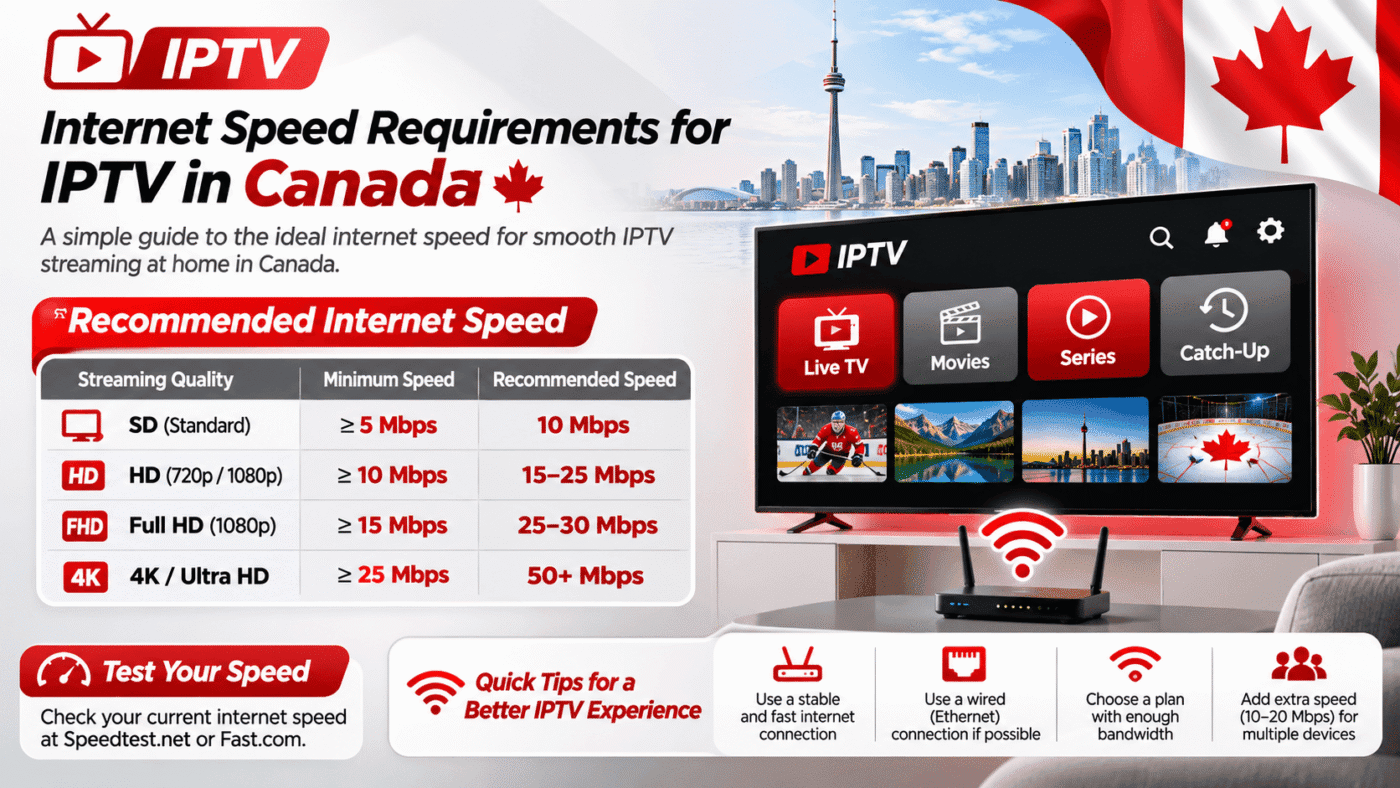
For one IPTV stream, a practical starting point is 5–10 Mbps for HD, 10–15 Mbps for Full HD, and 25–30 Mbps for 4K streaming. SD streaming generally needs around 3–5 Mbps. If several people watch IPTV at the same time, your household needs additional download bandwidth. The actual speed reaching your TV or streaming device matters more than the maximum speed advertised in your internet package.
Your internet connection also needs to remain stable during playback. Wi-Fi problems, network congestion, device performance, and an unstable stream source can cause buffering even when your internet plan offers high speeds.
What Internet Speed Do You Need for IPTV?
Internet speed is usually measured in megabits per second (Mbps). It describes how much data your connection can transfer each second.
For IPTV, download speed is especially important because your device receives video data from the streaming source. Different video resolutions require different amounts of bandwidth.
Here are practical download speed estimates for one active IPTV stream:
| Streaming quality | Suggested download speed per stream |
|---|---|
| SD (480p) | 3–5 Mbps |
| HD (720p) | 5–10 Mbps |
| Full HD (1080p) | 10–15 Mbps |
| 4K Ultra HD | 25–30 Mbps |
These figures are planning estimates, not fixed requirements for every IPTV service. Actual bandwidth needs depend on video bitrate, compression, frame rate, provider, and playback device.
It is also important to understand three different speed measurements:
- Minimum speed: The connection may be fast enough to start playing a particular stream.
- Recommended speed: A more comfortable target that leaves some room for normal network changes.
- Actual available speed: The bandwidth reaching your streaming device while you are watching.
For example, your Canadian internet package may advertise 100 Mbps, but your television might receive much less over a weak Wi-Fi connection. Other household devices can also use bandwidth while you stream.
Recommended Internet Speed for Different IPTV Qualities
The video quality you choose affects how much internet bandwidth your IPTV stream needs. Higher resolutions usually require more data, especially when the video has a high bitrate.
Internet Speed for SD IPTV Streaming
Standard Definition (SD), commonly associated with 480p video, requires less bandwidth than HD or 4K.
A practical estimate is 3–5 Mbps for one SD stream.
SD can be useful when:
- Your internet connection has limited bandwidth.
- You are watching on a smaller screen.
- Other people are using the same household connection.
- You want to reduce data consumption.
The actual requirement still depends on the stream’s bitrate and compression. A poorly compressed SD stream may use more bandwidth than expected.
Internet Speed for HD IPTV Streaming
High Definition (HD) commonly refers to 720p video. A practical speed estimate is 5–10 Mbps for one HD stream.
HD provides more detail than SD and is suitable for many televisions, laptops, and other screens.
However, not every HD channel uses the same bitrate. A stream with a higher frame rate or less efficient compression may need more bandwidth to play smoothly.
If several people use the internet at the same time, allow additional capacity beyond the needs of one HD stream.
Internet Speed for Full HD IPTV Streaming
Full HD usually refers to 1080p video. It displays more detail than 720p and generally requires more bandwidth.
A practical estimate is 10–15 Mbps for one Full HD stream.
A stable connection is important, especially when watching live sports or other content where interruptions are noticeable.
If your measured speed regularly drops below the recommended range, you may experience buffering or changes in playback quality. Check the speed reaching your device rather than relying only on the advertised package speed.
Internet Speed for 4K IPTV Streaming
4K Ultra HD offers a much higher resolution than Full HD. It contains more image detail and can require considerably more data.
A practical estimate is 25–30 Mbps for one 4K stream.
Before choosing 4K playback, check that:
- Your television or streaming device supports 4K.
- The IPTV stream is actually available in 4K.
- Your internet connection can provide enough bandwidth.
- Your router and network connection are stable.
A 4K television does not automatically make every IPTV channel play in 4K. The content source must also provide that resolution.
A 50 Mbps connection may provide enough bandwidth for one 4K stream under suitable conditions, but it does not guarantee uninterrupted playback. Other household activity, Wi-Fi quality, and the stream’s bitrate still matter.
How Much Internet Speed Do You Need for Multiple IPTV Devices?
The speed required for one IPTV stream is different from the speed needed when several people watch at the same time.
For example, a household may have one television playing HD content, another television playing 4K, and a tablet streaming a different channel. All active streams use part of the available download bandwidth.
A simple way to estimate the streaming requirement is:
Required streaming bandwidth = speed per stream × number of simultaneous streams
Using the recommended estimates above, here are some examples:
| Household streaming activity | Approximate streaming bandwidth |
|---|---|
| One HD stream | 5–10 Mbps |
| Two HD streams | 10–20 Mbps |
| Three HD streams | 15–30 Mbps |
| One 4K stream | 25–30 Mbps |
| Two 4K streams | 50–60 Mbps |
| One 4K + two HD streams | 35–50 Mbps |
These figures cover video streaming only. Your household may need additional capacity for other online activities, including:
- Online gaming
- Video calls
- Large file downloads
- Cloud backups
- Other streaming services
- Automatic software updates
Also, having several devices connected to Wi-Fi does not mean they are all actively streaming. The main calculation should consider how many video streams are playing simultaneously.
Remember: The number of connections included in an IPTV subscription is different from your internet bandwidth. A service may allow multiple connections, but your home network still needs enough available speed to support them.
What Affects IPTV Streaming Performance?
Download speed is important, but it is not the only factor that determines how smoothly IPTV plays. Several network and device conditions can affect the viewing experience.
Available Download Bandwidth
Your internet package may advertise a maximum download speed, but the amount available during playback can be lower.
For example, if several people are downloading files or watching videos, they share the household connection. This leaves less bandwidth available for your IPTV stream.
The speed measured on the streaming device is therefore more useful than the package’s advertised maximum.
Network Congestion
Network congestion happens when many devices or users compete for available bandwidth.
It can occur inside your home when several people use the internet at once. Your internet provider’s network may also experience busy periods.
If IPTV buffers mainly during certain hours, compare speed tests at different times. This can help you identify whether changing network conditions are affecting playback.
Wi-Fi Signal Strength
Your router may provide a fast connection, but the signal can weaken before reaching a television in another room.
Common causes include:
- Long distance between the router and TV
- Thick walls and floors
- Furniture and physical obstructions
- Interference from nearby wireless networks
- Poor router placement
A weak Wi-Fi connection can reduce the speed and stability available to your streaming device.
Latency, Jitter and Packet Loss
These network measurements describe different aspects of connection quality.
- Latency: The time data takes to travel across a network.
- Jitter: Changes in the time it takes data packets to arrive.
- Packet loss: Data packets that fail to reach their destination.
Download speed measures how much data can be received over time. Latency, jitter, and packet loss describe how consistently that data travels.
A connection can show a high download speed but still perform poorly if it has significant packet loss or unstable delivery.
Streaming Device Performance
The device itself can also affect playback.
Older hardware, limited memory, outdated software, or overheating may cause an IPTV application to freeze, lag, or close unexpectedly.
If IPTV buffers on one television but works normally on another device using the same network, check the affected device before assuming the internet connection is responsible.
IPTV App and Stream Source
Buffering does not always originate from the internet connection.
An application may have a software problem, while a particular channel or stream source may be temporarily unavailable or unstable.
If only one channel buffers, the issue may be related to that specific stream rather than your overall internet speed.
Is Your Canadian Internet Plan Fast Enough for IPTV?
Canadian households can use different broadband technologies, including fibre, cable, DSL, and fixed wireless. Each can provide a different level of performance depending on the plan, location, network conditions, and equipment.
When checking whether your internet plan is suitable for IPTV in Canada, consider the following:
Advertised speed versus actual speed: Your provider may advertise a maximum download speed, but the speed reaching your streaming device can be lower.
Connection type: Fibre, cable, DSL, and fixed wireless connections can perform differently. Do not assume one connection type will always be better in every Canadian location.
Household usage: A connection that supports one HD stream may not be sufficient for several simultaneous 4K streams and other online activities.
Wi-Fi performance: Your internet plan may offer enough bandwidth, but a weak wireless signal can prevent your TV from receiving it.
Data allowances: Some internet packages include monthly data allowances or specific traffic management conditions. Check your plan if your household watches IPTV for several hours each day.
The best way to assess your connection is to measure its actual performance where you watch IPTV. Do not choose an internet package based only on its advertised maximum speed.
How to Test Your Internet Speed for IPTV
A speed test helps you understand how much download bandwidth is available on your connection. For a useful result, test the network from the device and location where you normally watch IPTV.
Follow these steps:
- Connect your television or streaming device to your home network.
- Pause unnecessary downloads, large file transfers, and other high-bandwidth activities.
- Open a reputable speed-testing service, such as FAST.com.
- Run the test and record the download speed.
- Repeat the test at different times, especially when IPTV usually buffers.
- Compare the results with the recommended speed for your chosen video quality.
- If possible, run another test using an Ethernet connection and compare the results.
For example, if you want to watch one 4K stream, compare the measured download speed with the practical estimate of 25–30 Mbps.
Do not rely on a speed test from your phone beside the router if your television is in another room. The phone may receive a stronger Wi-Fi signal than the streaming device.
If you need help configuring your streaming device after checking your connection, follow our IPTV installation guide.
How to Improve Internet Speed and Stability for IPTV
If your internet connection is slow or unstable during playback, try these steps before upgrading your package.
- Move your router to a better location. Place it in a central, open area rather than inside a cabinet or behind large objects.
- Use Ethernet where possible. A wired connection can provide more consistent performance for stationary televisions and streaming boxes.
- Choose a suitable Wi-Fi band. Use 5 GHz or 6 GHz Wi-Fi when supported by your router and streaming device. These bands can provide faster local connections, although their range and wall penetration differ.
- Reduce unnecessary downloads. Pause large downloads, cloud backups, and other activities that use significant bandwidth while watching.
- Restart your router and streaming device. A restart can help resolve temporary connection or software problems.
- Update your software. Check for available router firmware and streaming device updates.
- Check Wi-Fi coverage. If the signal is weak, consider improving router placement or using suitable network equipment.
- Contact your internet provider. If measured speeds remain consistently below the expected performance of your package, ask your provider to investigate.
- Consider a faster plan if needed. If several people regularly stream at the same time, a higher-bandwidth package may be appropriate.
An internet plan upgrade will not necessarily fix every buffering problem. If the issue comes from an application, device, or stream source, increasing download speed may make little difference.
Why Does IPTV Buffer Even with Fast Internet?
A high-speed internet package does not guarantee that every IPTV stream will play smoothly. The problem may come from your Wi-Fi network, device, application, or the stream itself.
Use the following table to identify possible causes:
| Symptom | Possible cause | Initial check |
|---|---|---|
| All internet video services buffer | Internet or Wi-Fi problem | Test the same device’s network connection |
| Only one IPTV channel buffers | Channel-specific or source issue | Try another channel |
| Buffering happens during busy hours | Network congestion | Compare speed tests at different times |
| TV buffers but phone works | Weak Wi-Fi or TV device issue | Test the TV near the router or use Ethernet |
| App freezes or crashes | Device or application problem | Restart and update the app |
| Every channel stops loading | Network, login, application, or provider-side issue | Check connectivity and account status |
Start by checking whether other online services work on the same device. Then try another IPTV channel and compare the results.
If all internet services are slow, investigate your home network or contact your internet provider. If only one channel has a problem, the stream source may be responsible. If the application freezes or crashes, check the device and software.
Does IPTV Use a Lot of Internet Data?
Internet speed and internet data usage are two different measurements.
- Mbps measures how quickly data can be transferred.
- GB measures how much data is consumed over time.
IPTV uses internet data while video is playing. Higher resolutions and higher video bitrates generally consume more data than lower-quality streams.
Your total data consumption depends on:
- Video resolution
- Average stream bitrate
- Hours watched
- Number of simultaneous streams
- How often you watch IPTV
A simple way to understand data consumption is:
Data used = average bitrate × viewing time
For example, if a hypothetical stream uses an average bitrate of 5 Mbps, one hour of continuous viewing would consume approximately 2.25 GB of data before accounting for minor differences in overhead and actual stream behaviour.
This is an illustration, not a fixed data estimate for every IPTV channel. Actual usage can be higher or lower depending on the stream.
If your Canadian internet plan has a monthly data allowance, monitor your usage, particularly if several household members watch IPTV regularly.
Is Ethernet Better Than Wi-Fi for IPTV?
Both Ethernet and Wi-Fi can support IPTV streaming. The better option depends on your equipment, network conditions, and the distance between your router and streaming device.
| Ethernet | Wi-Fi |
|---|---|
| Uses a wired connection to the router | Connects wirelessly |
| Usually provides more consistent performance | Performance depends on signal conditions |
| Less affected by wireless interference | Can be affected by walls and nearby networks |
| Useful for stationary TVs and streaming boxes | Convenient for mobile and flexible devices |
Ethernet is often a useful option when a television experiences buffering or unstable Wi-Fi. It can help determine whether the wireless connection is causing the problem.
However, a good Wi-Fi connection can stream IPTV successfully. You do not need an Ethernet cable for every device.
Frequently Asked Questions About IPTV Internet Speed
1. What is the minimum internet speed for IPTV?
For one stream, a practical starting point is around 3–5 Mbps for SD, 5–10 Mbps for HD, 10–15 Mbps for Full HD, and 25–30 Mbps for 4K. These are estimates rather than universal requirements. The actual speed depends on the stream’s bitrate, compression, device, and connection stability.
2. Is 10 Mbps enough for IPTV?
A 10 Mbps connection may be suitable for one HD stream and could support some lower-bitrate Full HD streams. However, it leaves limited capacity for other household activities. The actual result depends on how much speed reaches your streaming device and the stream’s bitrate.
3. Is 25 Mbps enough for IPTV?
Yes, 25 Mbps may be enough for one HD or Full HD stream and some 4K streams with lower bandwidth requirements. However, it is below the upper end of the recommended 25–30 Mbps planning range for one 4K stream, so it may not be sufficient in every situation.
4. Is 50 Mbps enough for 4K IPTV?
A 50 Mbps connection can provide enough bandwidth for one 4K stream under suitable conditions. It may also leave some capacity for other household activities. However, Wi-Fi performance, stream bitrate, congestion, and other active devices can affect playback.
5. Can IPTV work with a 100 Mbps internet connection?
Yes. A 100 Mbps connection can provide enough download bandwidth for several IPTV streams, depending on their quality and the other activities using the network. The speed available to each device and the stability of the connection still matter.
6. How much speed do I need for two IPTV streams?
For two HD streams, plan for approximately 10–20 Mbps of streaming bandwidth. For two 4K streams, the estimate is around 50–60 Mbps. These figures do not include additional bandwidth for gaming, downloads, video calls, and other household activities.
7. Does IPTV use more internet than Netflix?
Data consumption depends on video resolution, bitrate, compression, and viewing time rather than the platform name alone. A high-bitrate IPTV stream may use more data than a lower-bitrate stream on another service. Compare the actual video quality and bitrate to understand the difference.
8. Does IPTV work with Wi-Fi?
Yes. IPTV can work over Wi-Fi if the wireless connection provides enough speed and stability. Router distance, walls, interference, and network congestion can affect performance. Ethernet is another option if Wi-Fi causes repeated buffering.
9. Can slow upload speed cause IPTV buffering?
Download speed is usually more important for receiving IPTV video. Slow upload speed is less likely to be the direct cause of ordinary playback buffering. However, other network problems, such as congestion, packet loss, or an unstable connection, can still affect streaming.
10. Why does IPTV buffer when my speed test is fast?
A speed test measures connection performance at a particular time and may not reveal every problem. Weak Wi-Fi, packet loss, device limitations, application errors, or an unstable stream source can still cause buffering. Test on the same device, try another channel, and compare Wi-Fi with Ethernet.
More IPTV Guides and Troubleshooting Resources
If you want to understand IPTV setup and common playback problems, these guides can help:
- How to Set Up IPTV: Learn how to configure IPTV on compatible streaming devices and troubleshoot common setup problems.
- Is IPTV Down in Canada?: Find out how to distinguish an internet connection problem from an app, device, or service-related issue.
- What Is IPTV?: Understand how IPTV delivers television content through an internet connection.
Final Thoughts on Internet Speed for IPTV in Canada
For one IPTV stream, around 5–10 Mbps is a practical target for HD, 10–15 Mbps for Full HD, and 25–30 Mbps for 4K. SD generally needs around 3–5 Mbps. Households with multiple active streams need additional bandwidth based on the number and quality of streams playing at the same time.
However, download speed is only one part of the viewing experience. Wi-Fi coverage, network congestion, latency, device performance, and stream stability can all affect playback.
If IPTV buffers, test the internet speed on the actual streaming device, compare results at different times, and check whether the issue affects one channel or every online service. This will help you identify whether the problem is related to your internet connection, home network, device, application, or stream source.