

How to Improve IPTV Streaming Quality: 15 Practical Tips
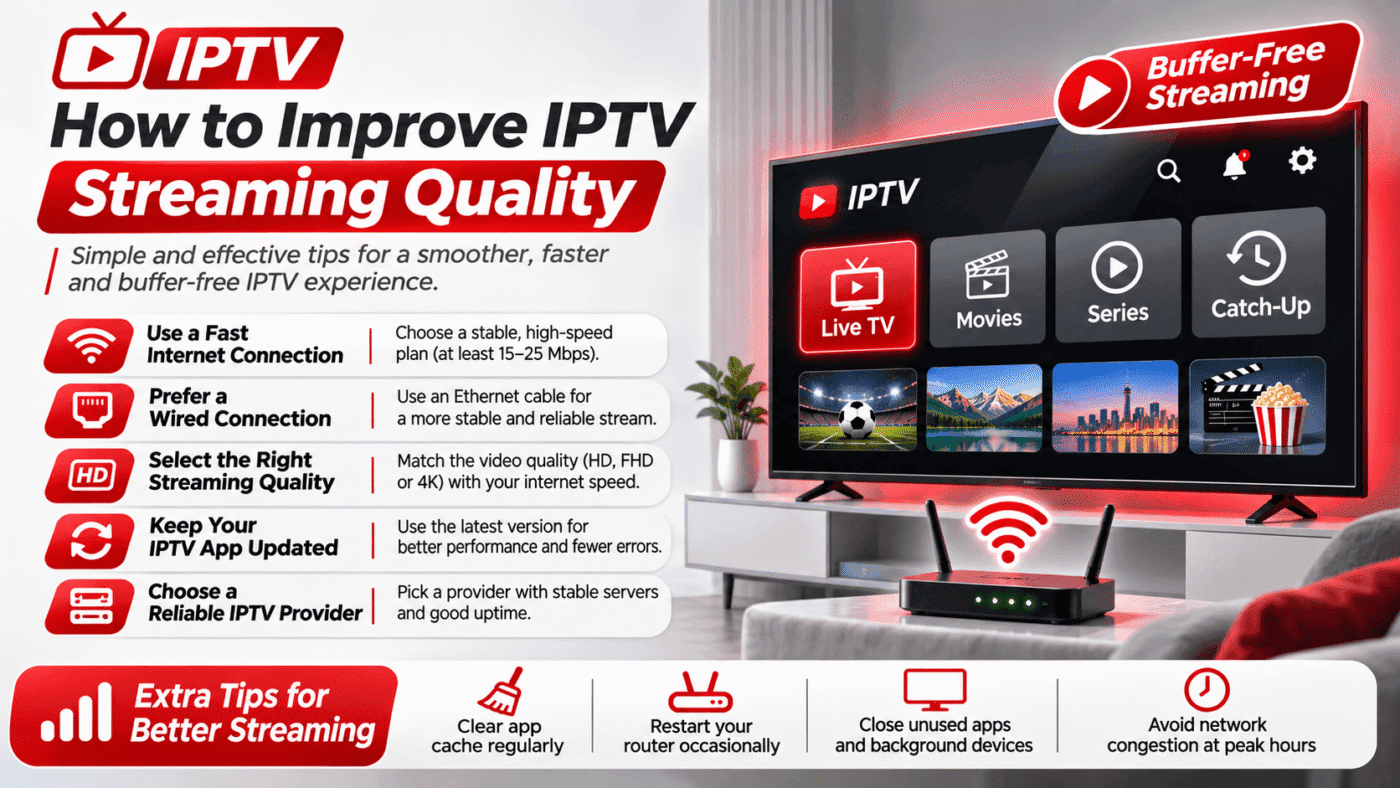
Improve IPTV streaming quality by stabilizing your internet connection, optimizing your Wi-Fi or Ethernet setup, reducing network congestion, updating your streaming device, and checking your IPTV app’s settings. Streaming quality depends on more than internet speed. Network stability, device performance, application compatibility, and stream availability also affect playback. If buffering or freezing continues, identify whether the problem comes from your network, device, application, or stream source before making further changes.
Quick Ways to Improve IPTV Streaming Quality
If your IPTV keeps buffering, freezing, or loading slowly, start with these simple checks:
- Restart your IPTV application.
- Restart your streaming device.
- Restart your router if your internet connection is unstable.
- Move your device closer to the router or connect it using Ethernet.
- Pause unnecessary downloads and background streaming.
- Check for IPTV application and device updates.
- Test another available channel.
- Check whether other internet services also have playback problems.
These steps can help identify common issues. However, they are not guaranteed fixes. If the problem continues, work through the following 15 tips to find its possible cause.
15 Ways to Improve IPTV Streaming Quality
Improving IPTV performance starts with checking your network, router, streaming device, and application. You do not need to change everything at once. Test one adjustment at a time so you can understand which change makes a difference.
1. Use a Wired Ethernet Connection
A wired Ethernet connection can provide more consistent network performance than Wi-Fi. It connects your streaming device directly to the router through a cable, reducing problems caused by wireless interference or weak signals.
To test Ethernet:
- Connect an Ethernet cable from your router to your streaming device.
- Check that the cable and router ports support the required connection speed.
- Make sure your device recognizes the connection.
- Play the same IPTV stream again and compare the results.
Ethernet is especially useful when your television is far from the router or separated by several walls.
It is not mandatory for IPTV. A properly configured Wi-Fi connection can also provide reliable playback. However, testing Ethernet can help you determine whether wireless connectivity is causing interruptions.
2. Improve Your Wi-Fi Signal
If you use Wi-Fi for IPTV, the signal reaching your streaming device matters. Your router may have a strong connection to the internet, but the television or Fire TV Stick may receive a weak wireless signal.
Several things can affect Wi-Fi coverage:
- Distance between the router and streaming device.
- Thick walls and floors.
- Large furniture or other physical obstacles.
- Nearby wireless networks.
- Electronic equipment that creates interference.
Try placing your router in an open, central location rather than inside a cabinet or behind large objects. If possible, reduce the number of walls between the router and your television.
After changing its position, test IPTV playback again. If performance improves, wireless coverage may have been part of the problem.
3. Choose the Appropriate Wi-Fi Band
Modern routers may support different Wi-Fi frequency bands. Choosing the right one can improve the connection between your router and streaming device.
2.4 GHz: This band generally provides better coverage over longer distances and through obstacles. However, it can experience more interference and may offer lower throughput.
5 GHz: This band can provide higher throughput, making it useful for streaming devices located relatively close to the router. Its signal may weaken more quickly through walls and over longer distances.
6 GHz: Available with compatible Wi-Fi 6E or Wi-Fi 7 equipment, this band can offer additional capacity. Both the router and streaming device must support it, and availability depends on regional requirements.
The best option depends on your home’s layout, distance from the router, wireless interference, and device compatibility.
Do not automatically choose 5 GHz or 6 GHz simply because the number is higher. Test the available bands and use the one that provides the most stable connection.
4. Reduce Network Congestion
Your internet connection is shared by all connected devices and online activities in your home.
For example, IPTV may buffer when someone else is downloading large files, playing online games, backing up cloud storage, or watching videos on another television.
To reduce network congestion:
- Pause large downloads during IPTV playback.
- Schedule cloud backups for quieter hours.
- Avoid unnecessary software updates while streaming.
- Limit simultaneous high-bandwidth activities.
- Check whether other household devices are using the connection heavily.
You do not need to disconnect every device. Start by pausing activities that use significant bandwidth and see whether IPTV playback becomes more stable.
5. Check Your Available Internet Bandwidth
Internet bandwidth affects how much video data your connection can receive. If several people are using the internet at the same time, the available bandwidth for IPTV may decrease.
Run a speed test using the streaming device where possible. If your television does not support a suitable speed-test application, test another device connected to the same Wi-Fi network and close to the television.
Check the results at different times of the day. A connection that performs well in the morning may become slower or less stable during busy evening hours.
Also consider:
- The number of active video streams.
- Other household internet activities.
- Whether the speed changes significantly over time.
- Whether the connection is stable during playback.
Remember that download speed is only one part of streaming performance. A connection can show a high speed-test result and still experience buffering because of packet loss, latency variation, or problems with the stream source.
For a detailed breakdown of bandwidth requirements for different video qualities, see our guide to internet speed required for IPTV.
6. Restart Your Router Correctly
A router restart can help when the network connection becomes unstable or the router stops responding properly.
Follow these steps:
- Close your IPTV application.
- Turn off your router using its power control or disconnect its power supply.
- Wait briefly before reconnecting it.
- Allow the router to start fully and reconnect to the internet.
- Reopen your IPTV application.
- Test the same channel again.
A restart may resolve temporary router or connection problems. However, it will not permanently fix weak broadband, poor Wi-Fi coverage, or an unavailable IPTV stream.
If you need to restart your router frequently, investigate the underlying connection or equipment issue.
7. Update Your Router Firmware
Router firmware is the software that controls how your router operates. Manufacturers sometimes release updates to fix bugs, address security issues, and improve device compatibility.
Check your router manufacturer’s official instructions to see whether an update is available.
Before updating:
- Identify your router’s exact model.
- Use the manufacturer’s official update instructions.
- Make sure the router has a stable power supply.
- Do not disconnect it while the update is running.
An update may help if your router has a software-related problem. However, firmware updates do not automatically increase your internet package speed or fix problems originating from an IPTV source.
8. Check Router Placement and Wireless Interference
Router placement can affect how reliably your streaming device receives data.
Avoid placing your router:
- Inside closed cabinets.
- Behind large metal objects.
- On the floor behind furniture.
- Beside equipment that may create wireless interference.
- In a location surrounded by thick walls.
An open, central position is often a better choice.
If certain rooms consistently have weak coverage, test the existing connection before buying additional equipment. A suitable access point or mesh Wi-Fi system may help when a home has persistent coverage gaps.
However, additional equipment is not always necessary. First determine whether the problem is caused by router placement, interference, or another network issue.
9. Check Network Quality Beyond Download Speed
A speed test does not show every detail about your internet connection. Three other measurements can help explain why IPTV buffers even when the download speed looks good.
Latency: The time data takes to travel between your device and another point on the network. High latency can affect how quickly services respond.
Jitter: Changes in latency over time. Large variations can make the delivery of video data less consistent.
Packet loss: When some data packets fail to reach their destination. Missing data can interrupt playback or require retransmission.
These problems can affect streaming even when your internet package offers high download speeds.
If you suspect network quality issues, compare results at different times or ask your internet service provider to investigate recurring connection problems.
10. Restart Your Streaming Device
Sometimes the problem comes from the streaming device rather than your internet connection.
Devices such as Fire TV Stick, Android TV, Smart TVs, and Apple TV run operating systems and applications that use system resources. Temporary software issues may affect playback.
Try a normal restart:
- Close the IPTV application.
- Use the device’s restart option where available.
- Allow the operating system to load completely.
- Open the IPTV application again.
- Test playback.
A restart can clear temporary problems and reload the device’s operating system.
Avoid repeatedly forcing the device to shut down by disconnecting its power while it is operating normally. Use the available restart function whenever possible.
For more device-specific setup instructions, see our IPTV installation guide.
11. Free Up Device Storage and Memory
A streaming device with limited available storage or too many active applications may struggle to run smoothly.
Check whether your device has enough free storage. Remove applications you no longer use and close unnecessary background applications where the operating system allows it.
You can also:
- Uninstall unused applications.
- Remove unnecessary downloaded files.
- Check available device storage.
- Close applications that are not needed.
- Restart the device after making changes.
Do not delete unknown system files or change advanced device settings without understanding their purpose.
If the device continues freezing or closing applications after these checks, its hardware limitations or software compatibility may need further investigation.
12. Update the Device Operating System
Your streaming device’s operating system helps applications communicate with the hardware and access system features.
An outdated operating system may cause compatibility problems with newer application versions.
Open your device’s settings and check for available system updates. Follow the manufacturer’s instructions and allow the update to finish.
Before updating older hardware, check whether the latest software version supports your device. Some older models may not support newer operating system versions or applications.
An update can help resolve certain software issues, but it cannot correct a weak internet connection or an unavailable stream.
13. Update Your IPTV Player Application
An outdated IPTV player may have compatibility problems or software bugs that affect playback.
Check whether a newer version is available through the official app store or the application’s official developer source.
After updating:
- Close the IPTV application.
- Install the available update.
- Restart the application.
- Check whether your playlist or login details are still available.
- Test the affected stream.
Make sure the application is compatible with your streaming device.
Updating an IPTV player may resolve application-related problems. However, it cannot fix an unavailable channel, an inactive account, or a problem with the source stream.
You can also read our IPTV app guide to learn more about IPTV player applications and their functions.
14. Clear the IPTV App Cache Where Supported
Some IPTV applications store temporary files called cache data. These files can help an application load certain information more quickly.
However, temporary data may sometimes become corrupted or contribute to application problems.
On supported Android TV and Fire TV devices, you can usually find the option through the application settings:
- Open the device settings.
- Go to Applications.
- Select the IPTV application.
- Open its storage settings.
- Choose Clear Cache, if available.
- Reopen the application and test playback.
The exact menu names may differ depending on your device and operating system.
Be careful not to select Clear Data automatically. Clearing application data may remove saved settings, login details, or other application information. You may need to configure the application again.
Clearing the cache can help with some loading or application-performance issues, but it will not fix network problems or an unavailable stream.
15. Check Playback and Video Settings
Your IPTV application may provide playback options that affect how video is processed and displayed.
Depending on the application and device, check these settings:
- Video resolution: Select a resolution supported by the stream and your display.
- Automatic resolution: Use automatic selection where it works correctly.
- Frame-rate matching: Enable this option where supported and appropriate.
- Hardware decoding: Check whether the application provides a hardware-decoding option.
- External player: Consider another supported player if there is evidence of an application-specific playback problem.
Change one setting at a time and test the same stream after each adjustment.
Avoid forcing a higher resolution simply because it is available in the device settings. A higher output resolution does not create better source content and may increase the processing demands on your device.
How to Improve IPTV Picture Quality
Buffering and picture quality are different problems. Buffering interrupts playback, while poor picture quality may make a video look blurry, pixelated, or less detailed.
If IPTV plays smoothly but the picture looks unclear, check the following factors.
Check the Available Stream Resolution
Video resolution describes the number of pixels used to display an image. Common formats include:
- SD: Standard Definition.
- HD: High Definition.
- Full HD: 1920 × 1080 pixels.
- 4K: 3840 × 2160 pixels.
The actual quality depends on the resolution and bitrate of the source stream. Your television or IPTV application cannot turn a low-quality source into genuine native 4K content.
Check the available stream information where your IPTV player provides it.
Match the Playback Resolution to Your Display
Your television, streaming device, and IPTV source all affect the final picture.
For example, a 4K television can display 4K output, but the IPTV stream itself must also provide suitable 4K content for native 4K detail.
Check:
- Your television’s native resolution.
- The resolution of the actual IPTV stream.
- The streaming device’s video output settings.
- Whether the device and television support the selected format.
Upscaling can make lower-resolution content fill a higher-resolution screen, but it does not add the original detail missing from the source.
Check Your Television’s Picture Settings
Incorrect television settings can affect how IPTV content looks.
Review these basic options:
- Picture mode: Try a suitable Standard, Cinema, or Movie mode.
- Sharpness: Avoid setting it unnecessarily high, as this can create artificial edges.
- Motion smoothing: Adjust it according to your viewing preference.
- Noise reduction: Test this setting if the picture contains visible noise.
- HDR: Use compatible HDR settings when both the source and display support them.
The best settings depend on your television model and personal preference.
Remember that television settings change how the picture appears. They cannot repair a low-resolution or heavily compressed source stream.
Check Whether the Source Stream Is the Problem
If one channel looks blurry while other channels display clearly, the problem may be specific to that stream.
Possible causes include:
- Low source resolution.
- Heavy video compression.
- Low source bitrate.
- Inconsistent source quality.
- Problems with the original video feed.
Try another channel or available stream. If the problem only affects one source, changing your router or television settings may not help.
Why Does IPTV Still Buffer with a Fast Internet Connection?
A fast internet package does not guarantee smooth IPTV playback. The connection may still experience interference, congestion, packet loss, or inconsistent data delivery.
The streaming device, application, and content source can also affect playback.
Here are some common symptoms and what they may indicate:
| What you experience | Possible cause | What to check |
|---|---|---|
| All apps buffer | Internet or home network issue | Test other streaming services on the same device |
| Only IPTV buffers | App, service, or stream-source issue | Test other IPTV streams and check account status |
| Only one channel buffers | Individual stream issue | Test another channel |
| TV buffers but phone works | TV Wi-Fi, device, or app issue | Test the TV using Ethernet |
| Buffering at certain times | Network congestion or source-side capacity | Compare performance at different times |
| Picture is blurry but playback is smooth | Source resolution, bitrate, or display settings | Check stream quality and display output |
| App freezes or closes | Device resources or app compatibility | Restart, update, and check storage |
These are diagnostic clues, not definite diagnoses. More than one problem can cause similar symptoms.
How to Identify the Source of IPTV Streaming Problems
Instead of changing several settings at once, follow a simple troubleshooting process.
Step 1: Test Another Internet Service
Open another video streaming service on the same device.
If it also buffers or struggles to load, investigate the internet connection or streaming device first.
If other services work normally, the issue may be related to the IPTV application, account, or stream source.
Step 2: Test Another IPTV Stream
Open another available channel.
If other channels work but one particular channel keeps buffering, the issue may be specific to that stream.
Changing your Wi-Fi settings is unlikely to fix a problem that affects only one source.
Step 3: Test Another Device
If possible, open the same IPTV service on another compatible device using the same internet connection.
If it works on the second device, investigate the original device, its application, or its network connection.
If both devices experience the same problem, the cause may be elsewhere.
Step 4: Test With Ethernet
Connect your television or streaming device directly to the router using Ethernet.
If playback becomes stable, investigate your Wi-Fi coverage, interference, and router placement.
If buffering continues, the issue may involve the internet connection, application, device, or stream source.
Step 5: Check the Application and Account
Confirm that:
- Your IPTV application is supported.
- Your login details are correct.
- Your subscription or account is active.
- Your playlist or connection information is current.
- The application is updated.
If the issue is account-related, contact the relevant service provider through its official support channel.
Step 6: Contact the Relevant Support Team
If you cannot identify the cause, provide useful information to the relevant support team or contact Pro IPTV Canada.
Include:
- Your streaming device model.
- IPTV application name.
- The error message, if one appears.
- Which channels or streams are affected.
- Whether other internet services work.
- The troubleshooting steps you have already tried.
Do not share passwords or private playlist URLs publicly.
Does Internet Speed Affect IPTV Streaming Quality?
Yes. Download bandwidth affects how much video data your device can receive. Higher-resolution streams and higher bitrates generally require more available bandwidth.
The number of active streams also matters because multiple devices share the same household internet connection.
However, speed is not the only factor. A stable connection with low packet loss and consistent data delivery can provide better playback than a faster connection experiencing frequent interruptions.
Is Ethernet Better Than Wi-Fi for IPTV?
Ethernet is often more consistent when Wi-Fi coverage is weak or wireless interference is present. However, a good Wi-Fi connection can also support reliable IPTV streaming.
| Ethernet | Wi-Fi |
|---|---|
| Uses a physical cable | Uses a wireless connection |
| Less affected by wireless interference | Can be affected by walls and other wireless signals |
| Useful for stationary televisions | Convenient for devices that move around |
| Requires a cable connection | Requires compatible wireless hardware |
If your television is near the router, Ethernet is worth testing. If running a cable is difficult, improve Wi-Fi placement and choose a suitable frequency band.
The best connection is the one that provides stable playback in your home.
Final Tips for Better IPTV Streaming
Improving IPTV streaming quality starts with identifying the actual problem. Check your network first, then review your router, streaming device, and application. If playback is smooth but the picture looks poor, investigate the source resolution and display settings separately.
Avoid buying new equipment or changing your internet package before testing the existing setup. A few simple checks can help you understand whether the issue is within your home network or outside your control.